Story Editor — User Guide
The Story Editor is a Godot plugin built into the project. It displays a visual graph of all narrative scenes defined in the JSON files, directly inside the Godot editor — without modifying the game outside of explicit editing actions.
Activation
- In Godot, open Project → Project Settings → Plugins
- Enable Story Editor
- A Story Editor tab appears at the bottom of the editor (bottom panel, next to the Output console)
Quick start
Once enabled, here are the four basic actions to get started:
- Click Refresh — the graph loads all scenes from the project's JSON files
- Click a node — its content appears in the detail panel on the right; all fields are editable directly
- Right-click on the graph background — creates a new scene (ID, contact, target file)
- Drag an output port to an input port — connects two scenes (
next)
Everything that follows in this document details these actions and the advanced features.
Interface
+--------------------------------------------------------------------------------------+
| [Refresh] [Reformat…] [Contacts] [Settings] [↩] [↪]   2/5 : scene_03               |
| [🚩 Flags] [📊 Analyse] [🗗]  [fr v]  [All v]  [Find by ID or text...____] [<-][->] |
+-------------------------------------------+------------------------------------------+
|                                           |  scene_04                                |
|  [> ch1_intro] --> [scene_01] -------->   |  Contact  [Maeve              v]         |
|                         |                 |                                          |
|  [! orphan]      [X scene_02]             |  Messages ----------------------         |
|                                           |                                          |
|  [~ scene_03] - - - trigger - - - ->      |   Hello!                      [x]        |
|                                           |   +---------------------------+          |
|                                           |   | I'm writing from the     |          |
|                                           |   | train.                   |          |
|                                           |   +---------------------------+          |
|                                           |   pause    [medium  v]                   |
|                                           |   requires [--      v]                   |
|                                           |                                          |
|                                           |  Choices  -------------------            |
|                                           |   That's spam    -> [-- v] [x]           |
|                                           |   Yes, I hear you-> [-- v] [x]           |
|                                           |   [+ choice]                             |
+-------------------------------------------+------------------------------------------+
The toolbar is a single horizontal row; it is shown on two lines here for readability.
Legend: [> id] = start scene · [! id] = orphan · [X id] = dead end · [~ id] = free input · - - -> = trigger connection
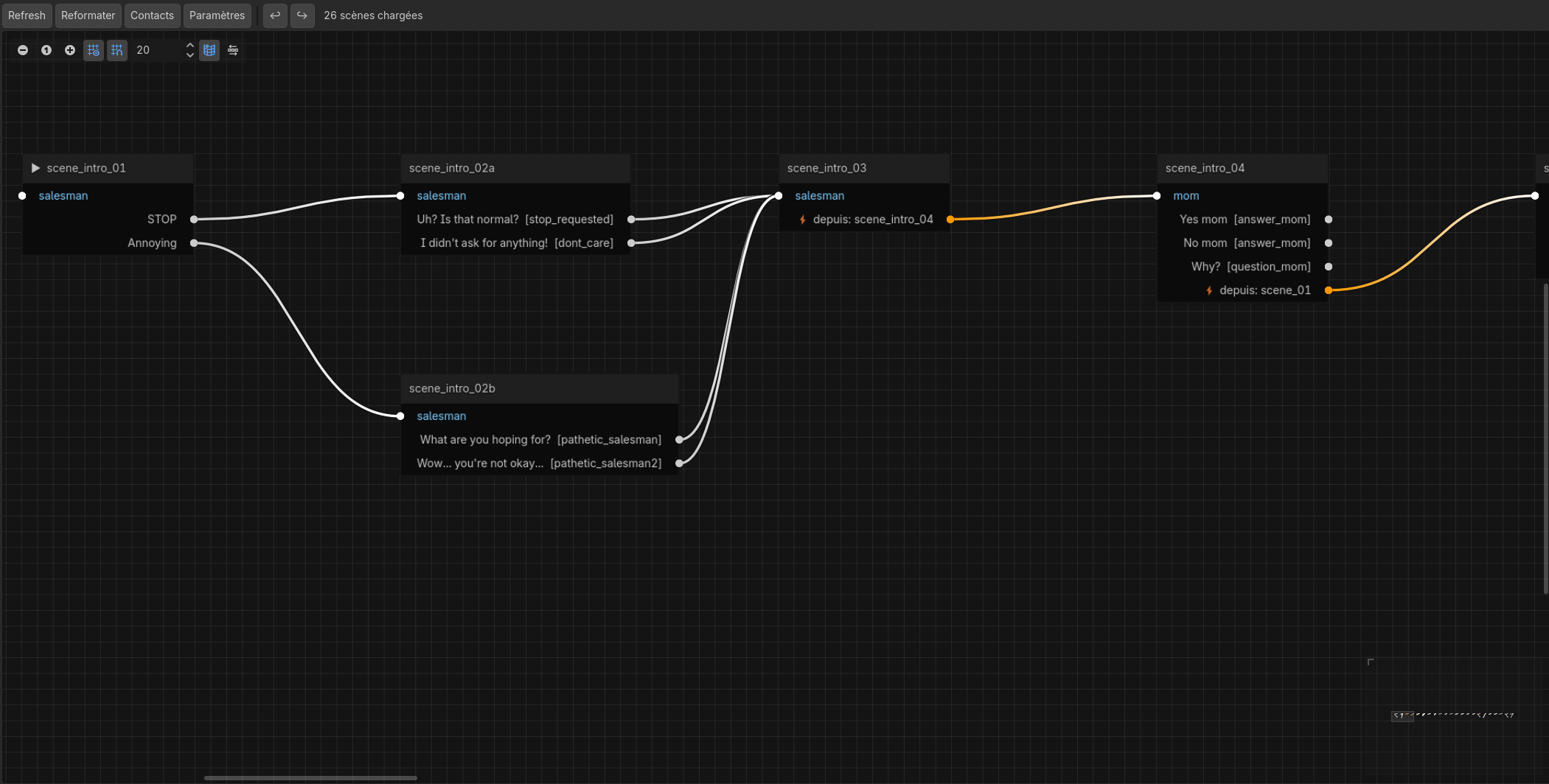
- Refresh button: re-reads the JSON files and rebuilds the graph. Use it after editing any dialogue file manually. Edits made from the graph trigger an automatic refresh.
- Reformat… button: opens a selection dialog before anything is written. It shows exactly which files under
dialogues/will be reformatted, including any fallbacks used by the active language. See Reformatting JSON files. - Contacts button: opens the Contacts panel — a floating window for managing the character list.
- Settings button: opens the Settings panel — a floating window for global settings, languages, and the end screen.
- 🚩 Flags button: opens the Flags panel — a floating window listing all project flags with the scenes that set or use them.
- 📊 Analyse button: opens the Analysis panel — a floating window with a full narrative analysis (accessibility, unused flags, loops, characters, indicative duration).
- ↩ / ↪ buttons: undo / redo the last action (same as Ctrl+Z / Ctrl+Y).
- 🗗 button: opens the Story Editor in a separate window — handy on a second screen. A second click brings the existing window to the front instead of opening a new one. The window can be maximized.
- Contact filter: dropdown listing all project contacts. Selecting a contact dims all scenes belonging to other contacts to 20% opacity — connections remain visible to keep global context. Choosing "All" restores normal display. The filter is preserved after a Refresh.
- Search field: type any text and press Enter to search first by scene ID (exact → prefix → substring), then inside message and choice text. Search is case-insensitive. When multiple results match, the ← / → buttons (or the arrow keys while the field is focused) navigate between them; the status label shows
2 / 5 : scene_id. Escape clears the field. Ctrl+F from anywhere in the panel focuses this field. - Graph (main area): nodes are draggable, zoomable with the mouse wheel, and navigable by holding middle-click or Space + drag. A minimap in the bottom-right corner gives an overview of the full graph. Node positions are saved automatically and restored on every open.
- Detail panel (right): clicking a node displays its full content. Message and choice text fields are directly editable.
Graph Nodes
Each JSON scene maps to one node. The title of the node is the scene's id.
Visual Indicators
| Indicator | Meaning |
|---|---|
| ▶ before the ID | Starting scene (start_scene in story.json) |
| ✎ after the ID | Scene with free_input (player types a free-text response) |
| 📝 after the ID | Scene with internal notes (_notes) |
| Title bar color | Each contact gets an automatically generated title bar color derived from its ID — consistent across sessions |
| Small text below the title | Truncated preview (60 chars) of the scene's first message |
| ⛔ Dead end (red) | The scene has no outgoing connections — likely an authoring oversight |
| ⚠ Isolated (yellow) | No other scene points to this one — it can never be reached |
Connection Types
Arrows between nodes are color-coded by their nature:
| Color | Type | Description |
|---|---|---|
| Light gray | next or choice |
Normal continuation or player choice |
| Orange | trigger |
Automatic trigger via trigger_after_scene |
| Purple | resume |
Conditional resume via resume_after_flag |
Ports
Each node has:
- One input port (left) — receives connections from preceding scenes
- One output port per connection (right) — one per next, one per choice (choices[])
If a scene has choices without a destination (next absent), each choice gets its own output port — visible without a wire, ready to be connected. Dragging from that port to another node writes next into the correct choice.
If a scene has neither choices nor next, a → ? port is shown: dragging from it to another node will add a scene-level next field.
Detail Panel
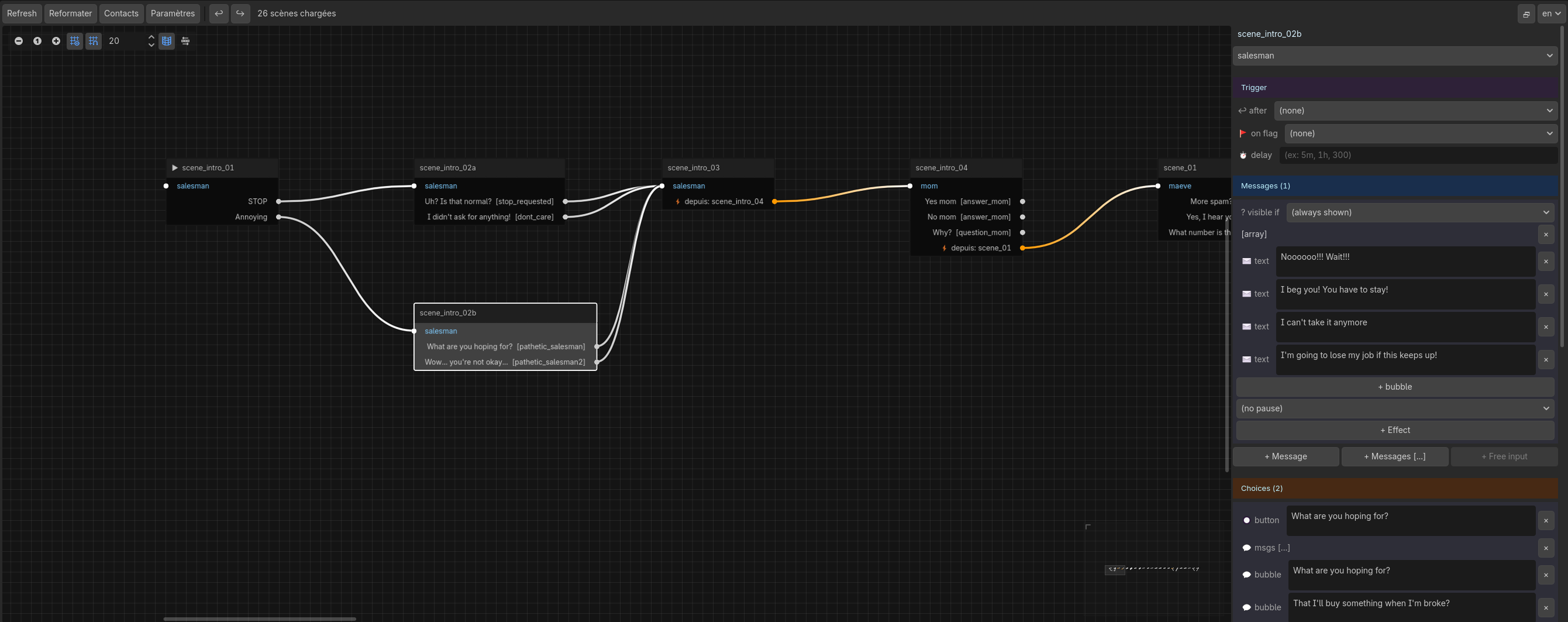
The editor is a practical aid for writing scenes without touching JSON. It covers the vast majority of common use cases. Some advanced features (structured
and/orconditions, media, deferred corrections, music) are only accessible via direct JSON editing — see What JSON Allows Beyond the Editor at the end of this document.
Clicking a node opens the detail panel on the right. All fields are directly editable and saved as soon as the field loses focus (click elsewhere or Tab).
Scene level
| Field | Interface |
|---|---|
_notes |
Text area — internal notes on the scene, ignored by the engine. Appear in green at the top of the panel. |
| Contact | Dropdown — all contacts in the project |
trigger_after_scene |
Scene dropdown — triggers when the selected scene has just played |
resume_after_flag |
Flag dropdown — waits in the background until this flag is set |
resume_after_delay |
Free text — accepts 300 (seconds), "5m", "1h" |
free_input (var) |
+ Free input button → text field for the variable name |
free_input_placeholder |
Text field — hint text shown in the player's input field |
Per message
| Field | Interface |
|---|---|
| Simple text | Multi-line text area + × to delete |
| Array text (bubbles) | Each bubble editable separately + + bubble to add one |
requires_flag |
Flag dropdown — hides the message if the flag is not set |
pause |
Dropdown — (none), short, medium, long |
effects |
One row per effect: op dropdown + target dropdown + value field + ×; + Effect to add |
Per choice
| Field | Interface |
|---|---|
| Button text | Multi-line text area + × to delete |
message (player bubble) |
Absent: + msg button (single bubble) and + msgs [...] button (multiple consecutive bubbles) · String: editable text field + × to remove · Array: each bubble editable separately + + bubble to add one + × to remove the entire array |
flag |
Text field — flag set when this choice is selected |
requires_flag |
Flag dropdown — hides this choice if the flag is not set |
next |
Scene dropdown — scene played after this choice |
effects |
Same interface as message effects |
Effects (effects)
Each effect has three fields:
| Op | Target | Value |
|---|---|---|
set |
Variable dropdown | Value to assign |
add |
Variable dropdown | Value to add |
sub |
Variable dropdown | Value to subtract |
rename |
Contact dropdown | Inline name editor: a — row for an invariant name (same in all languages), or one row per language code. Click + Language to add localized entries — the invariant entry is automatically converted to the first language entry. A language code is highlighted orange if no matching *.{code}.json file exists in dialogues/. |
set_status |
Contact dropdown | online / away / offline / network_issue |
Free input vs Choices
free_input and choices are mutually exclusive: the engine ignores choices if free input is defined. The editor reflects this: + Free input is greyed out if choices exist, and + Choice is greyed out if free input is active.
Editing from the Graph
All edits are written immediately to the corresponding JSON file, then the graph is rebuilt automatically. No confirmation is required except for deletion.
Create a Scene
Right-click on the graph background (not on a node) → creation dialog:
- ID: unique scene identifier (e.g.
scene_10). If the ID already exists, creation is rejected. - Contact: dropdown listing all contacts defined in
story.json. - File: if multiple JSON files exist in
dialogues/, an extra dropdown lets you choose which file to write the scene into.
The scene is appended to the file with an empty message { "text": "" }. It appears in the graph with the ⚠ Isolated indicator until an incoming connection is created.
Connect Two Scenes
Drag from an output port (right circle of a node) to the input port (left circle) of another node.
- If the output port corresponds to a choice, that choice's
nextfield is written to the JSON. - If the output port corresponds to the scene-level
next(or the → ? port), the scene'snextfield is written. - If the port already had a destination, it is replaced by the new one.
triggerandresumeconnections are read-only — they reflect JSON fields but cannot be modified from the graph.
Disconnect or Remove a Connection
Right-click on the source node → the context menu lists all active outgoing connections:
Delete this scene
Duplicate this scene
─────────────────────
Disconnect: That's spam → scene_02
Disconnect: Yes, I hear you → scene_02
Clicking a "Disconnect" entry removes the corresponding next from the JSON (the choice or scene next remains but without a destination).
Duplicate a Scene
Right-click on the node → Duplicate this scene — or Ctrl+D with the node selected.
The scene is copied into the same JSON file with a new ID ({id}_copy, then {id}_copy2… on collision). All messages, choices, and text are copied; outgoing links (next, trigger_after_scene, resume_after_flag, resume_after_delay, choices[].next) are cleared to avoid duplicate connections. The operation is undoable with Ctrl+Z.
Delete a Scene
Right-click on the node → Delete this scene — or Del with the node selected — → confirmation dialog.
On confirmation:
- The scene is removed from its JSON file.
- All next and choices[].next fields pointing to this scene are removed across all JSON files in the project.
- The graph is rebuilt.
Deletion can be undone with Ctrl+Z.
Keyboard Shortcuts
| Shortcut | Condition | Action |
|---|---|---|
| Ctrl+Z | — | Undo the last change |
| Ctrl+Y | — | Redo the last undone change |
| Ctrl+F | — | Focus the search field |
| F | No text field focused | Fit and re-center the graph view |
| Del | Node selected, no text field focused | Open the delete confirmation dialog |
| Ctrl+D | Node selected, no text field focused | Duplicate the selected scene |
| ← → | Search field focused, ≥ 2 results | Previous / next result |
| Esc | Search field focused | Clear the search and release focus |
Covered actions for undo: connecting / disconnecting scenes, creating / deleting scenes, editing any field in the detail panel, Reformat…, contact rename, all edits in the Contacts panel.
Exception: adding and removing languages (Languages section of the Settings panel) are not undoable — those operations may create several files, modify story.json and ui.csv, and then trigger a Godot reimport.
The undo history is scoped to the current editor session.
Settings Panel
Click the Settings button in the toolbar to open a floating window for global project settings. Everything writes immediately on change, with no Save button required. Global fields and typing speeds are saved to story.json and theme.json respectively.
Global fields
| Field | Interface |
|---|---|
title |
Text field — displayed in menus and the window title bar |
menu_music |
Text field + … button — opens Godot's file browser filtered to .ogg, .mp3, .wav. Path to the audio file looped in the main menu. Leave empty for no music. |
start_scene |
Scene dropdown — first scene played on a new game |
start_contact |
Contact dropdown — contact whose conversation is shown on screen at launch; if empty, the main contact is used |
Typing speed
Configures typing delays in theme.json. Changes take effect on the next game launch.
| Field | Interface |
|---|---|
| Contacts | SpinBox (0.01–0.50 s) — per-character delay for the … indicator shown while a contact is "typing". Default: 0.08 |
| Player | SpinBox (0.01–0.50 s) — per-character delay for player reply typing. Default: 0.05 |
Languages
The Languages section lists the columns declared in translations/ui.csv. It updates immediately without waiting for Godot to generate the .translation files.
| Element | Role |
|---|---|
| Chip per language + × | Each active language is displayed with a × button. It opens the removal wizard described below. The button is disabled for the last language and the default language. |
| + Add a language… | Opens the complete localization wizard described below. Nothing is written before final confirmation. |
Language setup wizard
The wizard has two steps:
- Configuration — enter a locale code (
es,de,pt_BR, etc.), choose a source language, and decide whether to create localized dialogue files and prepare localizedstory.jsonfields. - Review — check the UI string count, project-field count, and exact list of files that will be created before clicking Add language.
On confirmation, the wizard:
- adds a column to
translations/ui.csvand pre-fills it from the selected source language; - optionally creates one
name.{locale}.jsonfile for each available dialogue, using the localized source file or its fallback file; - optionally prepares contact
names,historytext, and localized end-screen fields instory.json; - asks Godot to regenerate the
.translationresources; - displays a result summary and reminds you which copied content still needs translation.
Existing localized files are never overwritten, even if they appear between review and confirmation. Writes are transactional and validated. If setup fails partway through, the language is not registered in ui.csv; files already prepared are kept, and the wizard can be run again without data loss.
If dialogue creation is disabled, the engine continues to use the default-language files automatically. The wizard does not consider copied text translated: it is only an explicit working base.
The language list in the game's settings is rebuilt automatically from
ui.csvon the next launch.
Language removal wizard
The × button for an unprotected language offers two scopes before anything is written:
- Remove from the game only removes its column from
translations/ui.csv. Dialogue files and localizedstory.jsonvalues remain intact so the language can be enabled again later. - Delete the entire language removes its
ui.csvcolumn, its entries from contactnames,history, and localized end-screen text, as well as every matching*.{locale}.jsonfile and the generated.translationresource.
A second step displays the localized-value count and the exact list of affected files. Final confirmation is required before removal is applied.
Complete removal remains recoverable: every removed file is renamed with a .removed.{timestamp} suffix together with any temporary and backup files. The engine no longer detects it, but its content remains available locally. These archives are excluded from Git. story.json uses the usual transactional write, and the ui.csv column is removed last. If setup fails partway through, the wizard can be run again.
The last language can never be removed. The default language is also protected because unsuffixed JSON files use its content as their fallback. To replace it, first configure and prepare another default language.
Recovery file maintenance
The File maintenance section contains the Clean recovery files… button. This wizard permanently removes old recovery files once the project has been checked and is working correctly.
Two categories can be scanned independently:
- rotating
.bak,.bak.2, and.bak.3backups created by safe writes; .removed.*archives kept after completely removing a language.
The wizard only scans project files and displays every affected path, its size, and the exact selection. Individual files can be unchecked before final confirmation. A .bak file whose primary file is missing or invalid is automatically protected because it may be the last recoverable copy.
Cleanup is permanent and does not create another backup of deleted files. .tmp files, .corrupt.* quarantines, .git, .godot, export directories, and game-save backups under user:// are intentionally excluded.
End screen
The End screen section configures what is displayed after a scene marked "end": true.
| Field | Interface |
|---|---|
title |
One field per active language — main title shown large. Saved as a localized dict when multiple languages are active, as a plain string when only one. |
text |
One field per active language — secondary text below the title (teaser, coming soon…). Same format as title. |
link URL |
Text field — URL opened on click (e.g. your itch.io page). Empty = no link shown |
link label |
Text field — text shown on the link. Empty = the raw URL is shown |
glitch |
Checkbox — enables text scramble on the title + animated scanlines + flicker |
show_stats |
Checkbox — shows the number of messages exchanged during the session |
To mark the final scene, add "end": true directly in that scene's JSON (see the authoring guide).
Contacts Panel
Click the Contacts button in the toolbar to open a floating window for managing the character list in story.json. Everything writes immediately on change, with no Save button required.
Contact list
Each contact is displayed as a card with all its configurable fields:
| Field | Interface |
|---|---|
id |
Text field — if changed, all contact_id references across every dialogue file are updated automatically |
name |
Text field — display name in the contact list and title bar |
is_main |
Checkbox — marks the contact that receives all scenes without an explicit contact_id; checking one unchecks all others automatically |
avatar |
Text field + … button — clicking … opens Godot's file browser directly in assets/avatars/. The path can also be typed manually (e.g. res://assets/avatars/maeve.png). Empty = contact's name initial on a colored background. Accepted formats: PNG, JPG, JPEG, WEBP. |
status |
Dropdown — online, away, offline, network_issue |
pending_scene |
Scene dropdown — scene queued for this contact at startup; the player sees a pending choice as soon as they open this conversation |
names |
"Localized names" section — a list of language code / name pairs. The + Language button adds a new entry (a ?? placeholder appears in orange — replace it with the actual code). A code is highlighted orange if no matching dialogue file (*.{code}.json) is found in dialogues/. See the names section of the authoring guide. |
history |
Row list — each entry has a → checkbox (sent by player), a YYYY-MM-DD date field (optional), a HH:MM time field, a 📅 button to open the visual date/time picker, and one text field per active language. If the project has multiple languages (e.g. fr and en), each row shows one field per language code. If the date is empty, the message displays as a same-day message; if it is before today, the displayed timestamp is DD-MM-YYYY HH:MM (FR locale) or YYYY-MM-DD HH:MM (other locales). |
- + Contact — adds a new contact card; fill in its fields right away
- × on a card — prompts for confirmation before removing the contact from
story.json - + msg on any card — appends a history entry to that contact
- × on a history row — removes that entry immediately
Renaming an
idis safe: the panel scans all dialogue files in the project and updates everycontact_idthat matched the old value. Thestart_contactglobal field is also updated if it pointed to the renamed contact.
Flags Panel
Clicking the 🚩 Flags button opens a read-only floating window listing every flag used in the project, derived in real time from the loaded scenes.
For each flag, three categories are shown (only the non-empty ones):
| Category | JSON source |
|---|---|
| ✏️ Set by | choices[].flag — scenes whose choice activates this flag |
| ⏱ Waited by | resume_after_flag — scenes that wait for this flag before triggering |
| ? Required by | requires_flag, condition (at any level: scene, message, choice) — scenes that check this flag |
Clicking a scene ID in the list centers the graph on that node and opens its detail panel.
The panel updates automatically after every graph Refresh.
Analysis Panel
Clicking the 📊 Analyse button opens a read-only floating window with a real-time analysis of the loaded scenes.
| Section | Contents |
|---|---|
| Overview | Scene count, messages, choices, dead ends (no continuation), unreachable scenes, loops, unused flags (colour-coded if > 0) |
| Accessibility | Percentage of scenes reachable from start_scene (exhaustive traversal from the start scene); clickable list of unreachable scenes |
| Unused flags | Flags set by choices[].flag but never checked in requires_flag, condition, or resume_after_flag (section hidden if all flags are used) |
| Loops | Closed cycles found by path exploration — scenes where the player can stay indefinitely with no exit condition (section hidden if none) |
| Characters | Message count per contact, sorted by volume descending, with percentage of total |
| Indicative duration | ≈ Xh YY or ≈ N min — based on 200 words/min counting all branches (including those never taken) |
Clicking a scene ID in the Accessibility or Loops sections centers the graph on that node.
The panel recalculates on every open (if already open, clicking the button again refreshes the data).
What JSON Allows Beyond the Editor
The editor covers the vast majority of scenarios. The following features still require direct JSON editing:
| Feature | Why JSON only |
|---|---|
Structured condition (and/or/flag/var) |
Complex boolean logic; requires_flag covers most cases |
media (image bubble) |
Shown read-only in the editor (📷 filename) |
edit (deferred corrections) |
The corrected text (corrected_text) is editable; type and delay remain read-only |
time (message appearance delay) |
Advanced, rarely needed |
music |
Advanced, rarely needed |
After a manual JSON edit, use Reformat… to restore the selected files to the canonical format described below.
JSON Format Produced by the Editor
The editor writes JSON using a consistent semantic key order at three levels:
Scene:
_notes → id → contact_id → trigger_after_scene → resume_after_flag → resume_after_delay → messages_in → free_input → free_input_placeholder → music → next → choices
Message:
text → edit → effects → media → pause → requires_flag → condition
Choice:
text → message → flag → requires_flag → condition → next → effects
Messages, choices, and text arrays are fully expanded: every object and every text item has its own line. Indentation uses tabs.
Reformatting JSON files
The Reformat… button does not write anything immediately. It first opens a compact dialog listing, in alphabetical order, every .json file under dialogues/.
- The language currently being edited is shown at the top of the dialog.
- The files actually used for that language are preselected.
- When a localized file does not exist, the default-language file used in its place is marked as a highlighted Fallback. Reformatting does not create the missing localized variant.
- Active language restores this initial selection; All files selects the entire list. Files can also be checked or unchecked individually.
- The confirmation button displays the number of affected files and remains disabled while the selection is empty.
Only the files checked when the action is confirmed are written. Reformatting changes document presentation only — indentation, line breaks, and canonical key ordering — without changing values or narrative logic. Every write uses the engine's safe-write mechanism and keeps a recovery copy. The operation can also be reverted with Ctrl+Z in the Story Editor.
When many languages or files exist, only the file list scrolls vertically: selection, confirmation, and cancellation actions remain visible. Each file's full path and fallback details are available in its tooltip.
Locale Support
The plugin reads dialogue files using the same locale logic as the game:
- It prefers acte1.en.json if the system language is en, otherwise falls back to acte1.json
- The locale used matches the OS language setting, not the in-game language setting
Previewing a different language: the locale dropdown in the toolbar ([fr v] in the ASCII above) lets you override the plugin's locale independently of the OS language. Selecting en loads acte1.en.json instead of acte1.json — useful for checking the English version from a French OS. The selection is reset when Godot restarts.
Architecture
This section is for developers who want to modify or extend the plugin. It is not needed for writing narrative content.
The plugin lives in addons/story_editor/ and does not touch any existing project file outside of explicit editing actions.
| File | Role |
|---|---|
plugin.cfg |
Godot manifest (name, version) |
plugin.gd |
EditorPlugin — adds/removes the panel |
StoryEditorPanel.tscn |
Panel scene (HSplitContainer[GraphEdit, ScrollContainer]) + toolbar |
StoryEditorPanel.gd |
Main logic: parsing, BFS layout, graph rendering, editing, JSON writing; opens the Contacts and Settings windows; owns undo/redo |
SceneDetailPanel.gd |
RefCounted — right-side scene editor form; all _populate_* and _add_* helpers; receives dependencies via callable properties injected by StoryEditorPanel |
StoryPanelBase.gd |
Shared base class for ContactsPanel and StorySettingsPanel: story.json read/write, undo/redo callables, UI helpers (_section, _line_edit, _dropdown, etc.) |
ContactsPanel.gd |
Contacts panel — character list only; extends StoryPanelBase |
StorySettingsPanel.gd |
Settings panel — global fields, languages, end screen; extends StoryPanelBase |
scene_parser.gd |
Standalone RefCounted — reads story.json + dialogues/*.json with locale support |
FlagsPanel.gd |
Flags panel — read-only list of every project flag with its originating scenes; plain Control, not connected to StoryPanelBase |
AnalysisPanel.gd |
Analysis panel — read-only narrative analysis: reachability traversal from start_scene, cycle detection, unused flags, per-contact message counts, indicative duration; plain Control |
json_utils.gd |
Static JSON helpers: expand() / compact() (custom serializer), ordered_scene/message/choice() (stable key order for readable diffs) |
scene_parser.gd is intentionally decoupled from dialogue_loader.gd to work in the editor context (game autoloads are not available inside a @tool plugin).
Both ContactsPanel.gd and StorySettingsPanel.gd extend StoryPanelBase.gd and receive four callables injected by StoryEditorPanel: get_scene_ids, begin_mutation, end_mutation, snapshot_file. Both panels communicate back via the story_modified and error_occurred signals. ContactsPanel additionally emits rename_contact_requested, whose dialogue file writes are delegated to StoryEditorPanel (which owns _write_json).
Scenes are written via _write_json(), which calls JsonUtils.ordered_scene() (semantic key ordering, defined in json_utils.gd) then JsonUtils.expand() (custom serializer: expands to depth 3, compact beyond). story.json uses the same serializer in ContactsPanel.